Registering Purchases
Register Purchase is how filament, printers, AMS/multi-color units, and other workshop hardware (“Extras”) officially enter SpoolIQ. It’s the single entry point for all of it — one dialog, one purchase record, whichever mix of item types you actually bought together on one supplier order.
What you register here becomes the source of truth for several other things at once:
- new spools appear in your filament inventory, ready to use in production;
- new printers and AMS units appear in your workshop, with their acquisition cost recorded for depreciation;
- new Extras (hardware/consumables) are added to stock;
- the purchase itself shows up under Workshop Investment & Purchases on the Finance & Accounting page — see that page for how it’s used there.
You don’t need to separately log these items anywhere else — registering the purchase is enough.
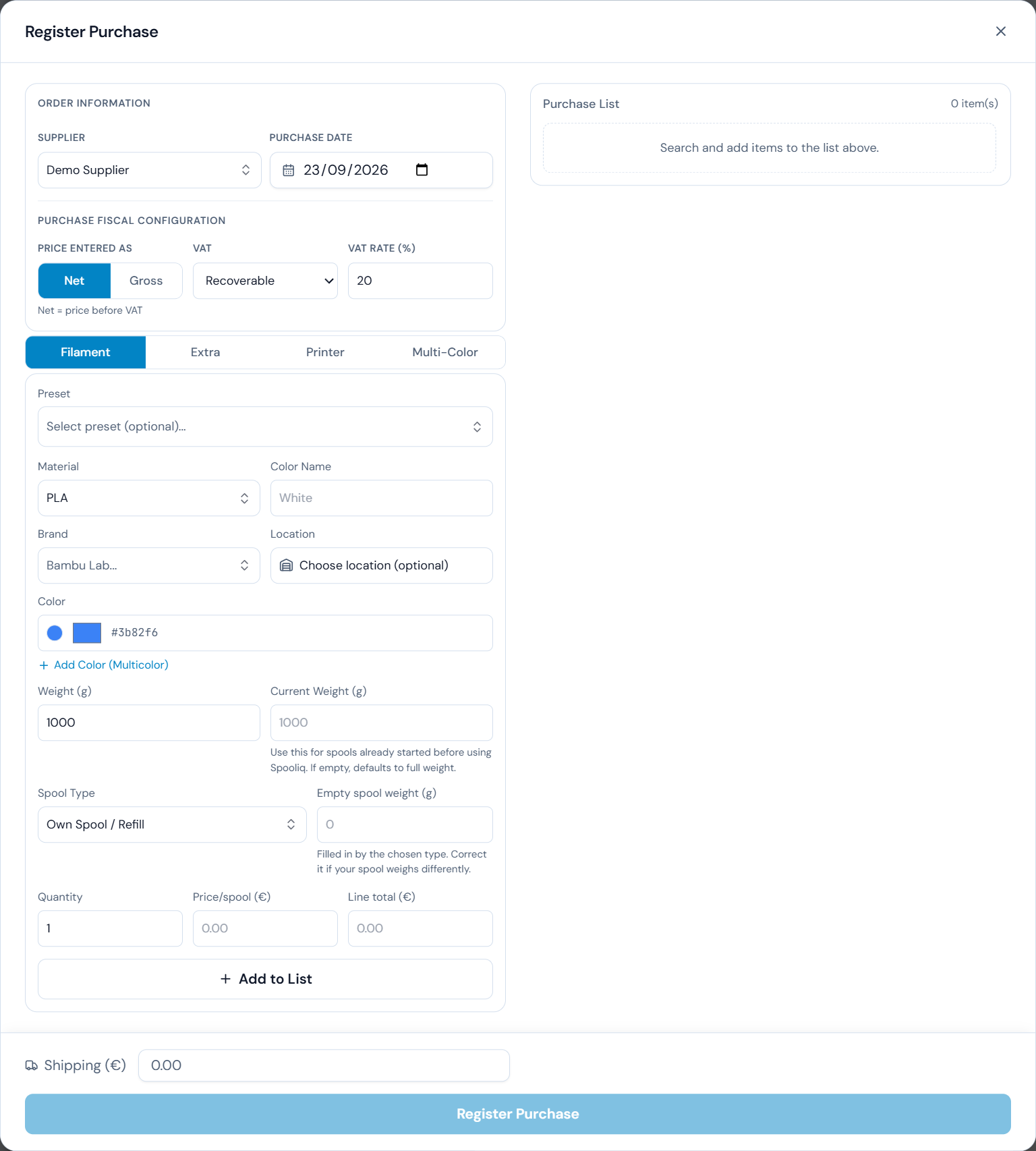
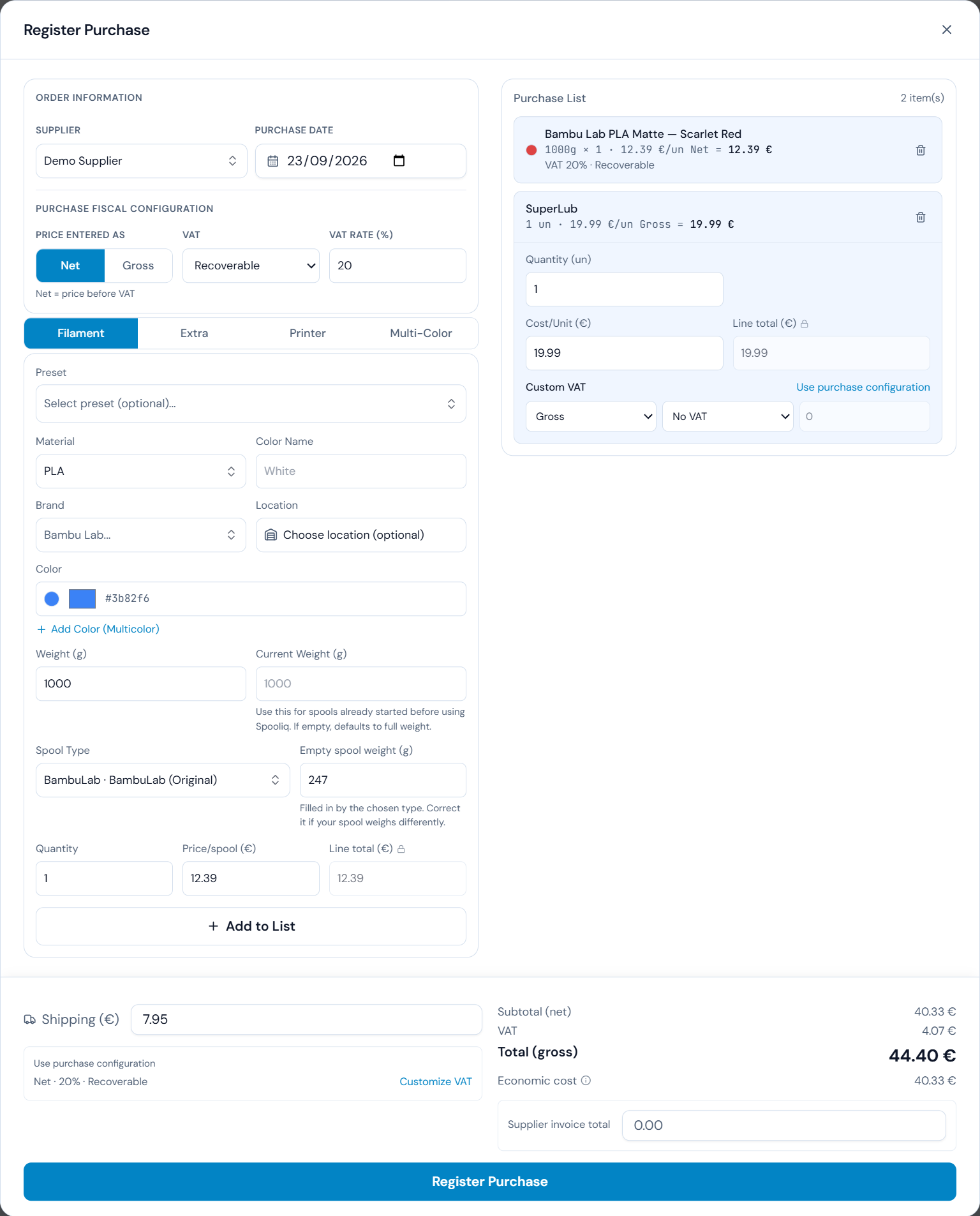
The Register Purchase dialog: order information, fiscal configuration, item entry, the purchase list, and shipping all in one place. Click any screenshot to open it at full size.
Order information
Every purchase starts with two basic details, plus the purchase’s fiscal configuration (covered next):
- Supplier — who you bought from. Optional; leave it unset if you don’t track suppliers for this purchase.
- Purchase date — defaults to today, but you can backdate it to match the real invoice date.
Purchase-wide fiscal configuration
Before adding items, you can set the purchase’s fiscal configuration. This is entirely optional — if you skip it, everything behaves exactly as if VAT/tax tracking didn’t exist at all.
Three things make up this configuration:
- HT / TTC (price entered as Net or Gross) — tells SpoolIQ whether the prices you’re about to type already include tax or not.
- VAT treatment — one of:
- No VAT — the default. No tax is recorded at all.
- Deductible (recoverable) — you can reclaim this VAT, so it’s tracked separately and doesn’t count as part of what the item “costs” your business.
- Non-deductible — this VAT is real money you can’t get back, so it stays folded into the item’s cost.
- VAT rate — the percentage, e.g. 20% or 23%.
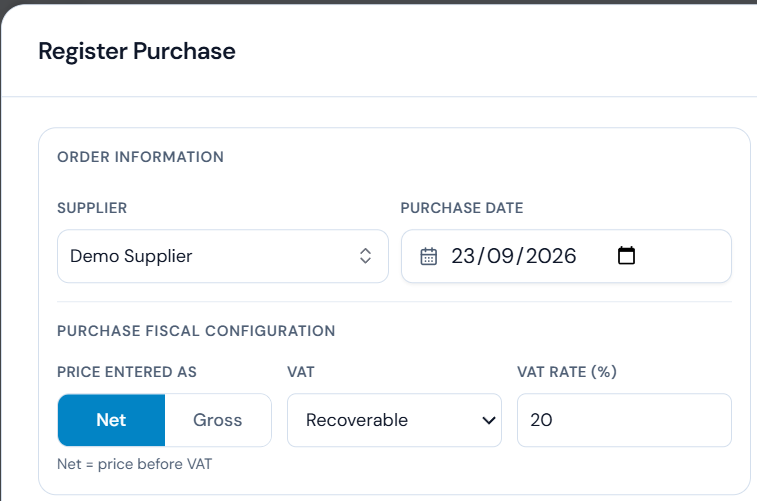
Set the common fiscal treatment for the purchase here. Individual lines can still use a different VAT configuration when required.
Mental model: think of this as the default fiscal setup for the whole purchase. Every line you add follows it automatically. You only need to touch anything per line when one specific item genuinely has a different rate or treatment than the rest of the purchase — see Purchase list below for how that override works.
Adding items
Items are added through separate tabs, one per type:
- Filament — a new spool (or several identical ones, via Quantity).
- Extra — hardware, packaging, or other consumables.
- Printer — a new printer, optionally with its detachable AMS units bundled in.
- Multi-Color — a standalone AMS/multi-color unit, bought on its own rather than bundled with a printer.
Each tab shows the fields relevant to that item type; adding an item puts it in the purchase list on the side, where you can review, adjust, or remove it before finishing.
Filament fields
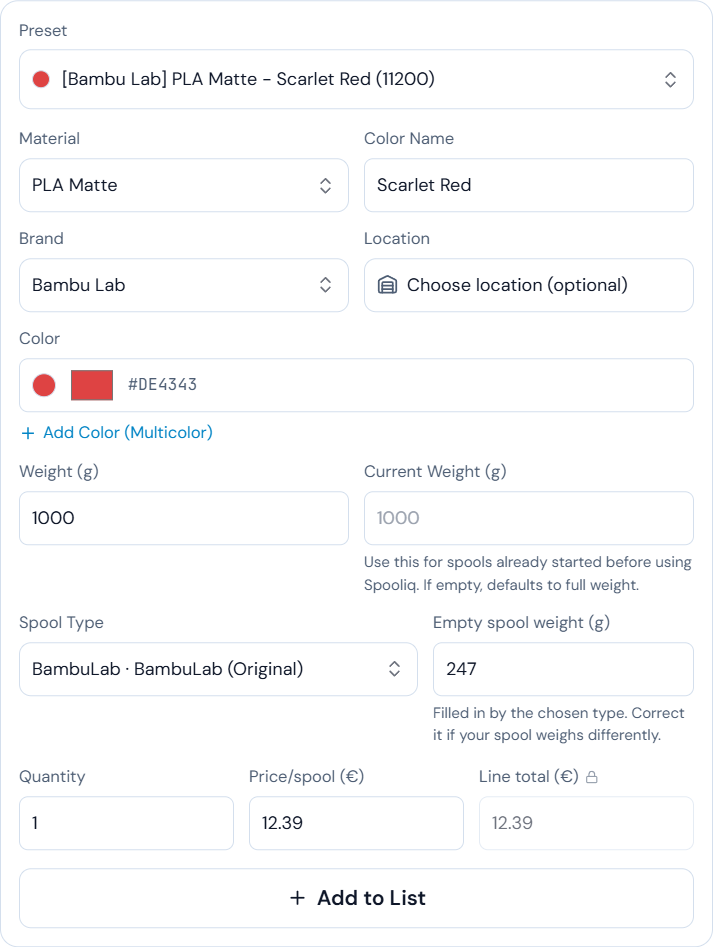
Filament entries include both acquisition details and the spool data used later by inventory.
- Preset — pick a known filament (brand, material, color) from your catalog, or create a new one on the spot.
- Brand, Material, Color Name — used when creating a new filament preset.
- Location — where this spool will be stored. Optional; if left unset, it uses your default storage location.
- Weight (g) — the spool’s advertised weight — 1000 for a “1kg” spool, for example. This is the full amount of filament, before accounting for the empty spool itself.
- Current Weight (g) — only relevant for a spool you’re registering that isn’t brand new (already partially used before it entered SpoolIQ). Leave it unset for a fresh, unopened spool.
- Spool Type (spool preset) — the physical spool/reel type, used to pre-fill the empty spool weight below. Choose “Own Spool / Refill” if none of the saved types match.
- Empty spool weight (g) — the weight of the empty reel itself. Filled in automatically by the Spool Type you chose; correct it if your actual spool weighs differently.
- Quantity — how many identical spools this line represents. Each one becomes its own separate spool record with its own QR code.
- Price per spool / line total — you can type either the per-unit price or the total for the whole line; SpoolIQ keeps the other one in sync automatically.
Weight, current weight, and empty spool weight are three different numbers — worth being precise about:
- Weight (g) is the full, advertised amount of filament (e.g. 1000g).
- Current Weight (g) is how much filament is actually left right now, which only matters if you’re registering a spool that’s already partially used.
- Empty spool weight (g) is the reel itself, with zero filament — used purely to separate “filament left” from “what the scale reads” elsewhere in the app.
Extra, Printer, and Multi-Color fields
These follow the same general shape as filament — quantity (for Extras), name/model, location where relevant, and a price per unit or per line — plus whatever’s specific to that type, such as a printer’s power/hourly cost or an AMS unit’s slot count. Each type’s fiscal fields (tax treatment, rate, basis) work exactly as described above.
Purchase list and per-line tax
Every item you’ve added appears in the purchase list. By default, each line simply shows the purchase’s own fiscal configuration — you don’t need to do anything for that to apply.
If one specific line genuinely has a different VAT treatment or rate than the rest of the purchase (common on mixed invoices), expand that line and choose Customize VAT. The line then shows Custom VAT and keeps its own independent setting from that point on, even if you later change the purchase-wide configuration. You can return it to following the purchase automatically at any time via Use purchase configuration.
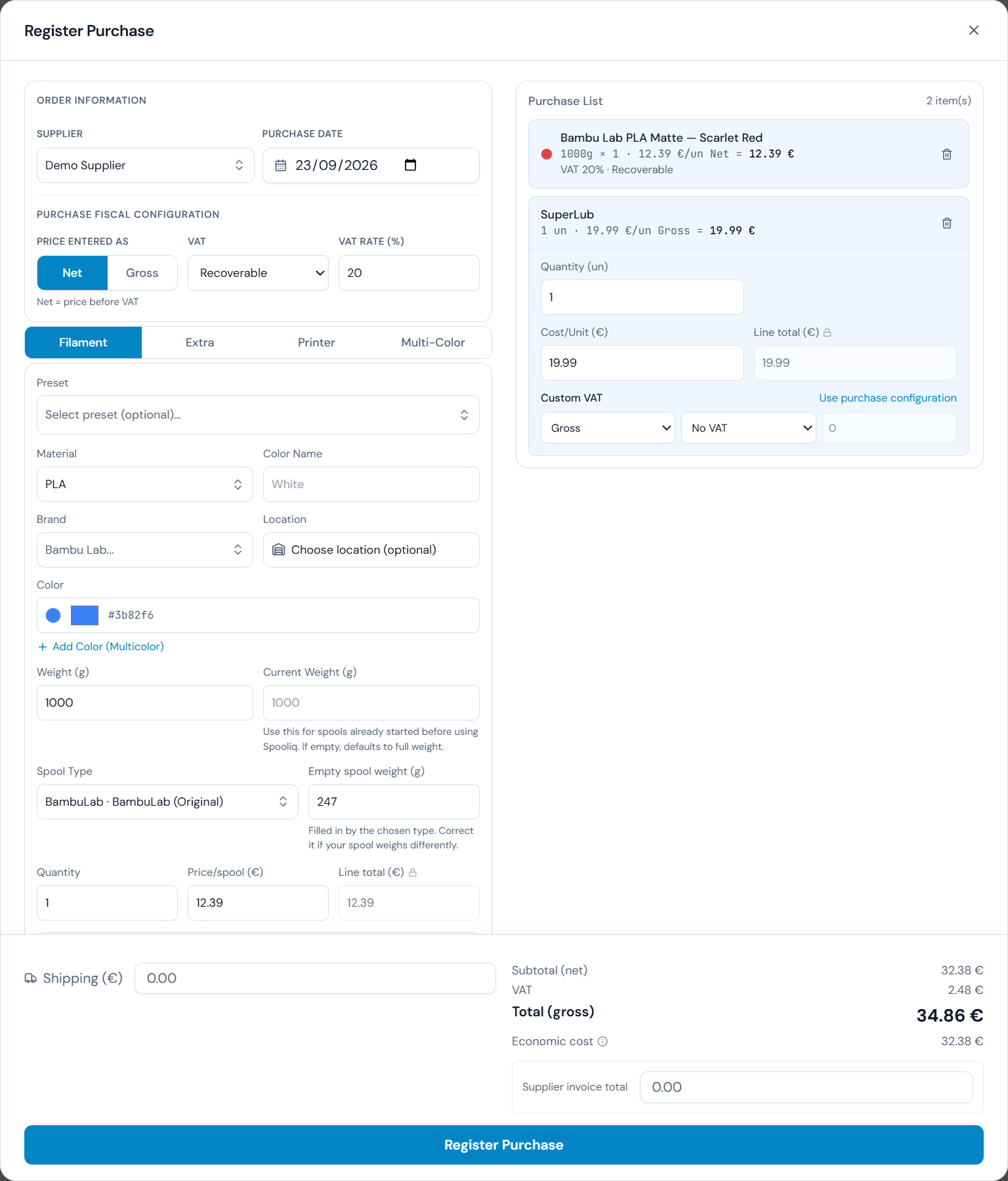
A line can override the purchase’s VAT settings and return to the purchase configuration at any time.
Shipping and shipping tax
If the supplier charged shipping/postage, enter it in Shipping in the purchase footer.
Shipping has its own fiscal configuration, separate from the purchase’s:
- By default, shipping starts with No VAT — it does not silently copy the purchase’s own tax setting.
- Choose Use purchase configuration if shipping should simply follow the same basis (HT/TTC), treatment, and rate as the rest of the purchase — while this is selected, later changes to the purchase’s fiscal configuration update shipping automatically too.
- Choose Customize VAT if shipping is taxed differently than the goods (a common real-invoice case) — a custom shipping setup stays independent until you switch back to using the purchase configuration.
Shipping’s cost (and its VAT, if not deductible) is distributed across the items in the purchase, so it’s included in their Economic cost — see below.
Shipping has its own VAT configuration, separate from the rest of the purchase. The footer also shows the calculated totals, economic cost, and the field used to reconcile against the supplier’s invoice.
Summary and totals
The footer shows a running summary as you build the purchase:
- Subtotal (net) — the sum of every line’s net value.
- VAT — the total tax across every line plus shipping.
- Total (gross) — what you actually pay the supplier, VAT included. This is the purchase’s headline total.
- Economic cost — see the dedicated section below; always shown separately from the Total, since for a purchase with deductible VAT the two are genuinely different numbers.
- Supplier invoice total and the reconciliation state — see below.
What “Economic cost” means
Economic cost is what this purchase actually costs your business, as opposed to what you paid the supplier.
- If VAT is deductible, you’ll get it back (e.g. through your regular VAT return) — so it is not counted as part of the economic cost. You paid the supplier the full gross amount, but the item only really “costs” the business its net value.
- If VAT is non-deductible, it’s money you genuinely can’t recover — so it is part of the economic cost, exactly like the rest of the price.
- Shipping follows the same rule for its own VAT treatment, and its cost is folded into each item’s economic cost proportionally.
This is also the figure used behind the scenes for depreciation and production cost — not the gross total you paid.
Supplier invoice reconciliation
If you enter the exact total from the supplier’s real invoice in Supplier invoice total, SpoolIQ compares it against the calculated Total for you:
- an exact match means your line-by-line entries add up to precisely what the invoice says;
- a small difference usually just means rounding somewhere — nothing to worry about;
- a larger difference is worth a second look at your lines, but it never blocks or prevents you from registering the purchase.
Reconciliation is a helpful check, not a requirement — SpoolIQ never assumes what caused a difference, and it’s always worth checking the real invoice yourself if something looks off.
Common scenarios
- No VAT at all — skip the fiscal configuration entirely; every line registers exactly like it always did.
- Deductible VAT — set the purchase-wide treatment to Deductible and the rate; the Total (gross) is what you paid, and Economic cost excludes the tax.
- Non-deductible VAT — same, but with Non-deductible selected; Economic cost now includes the tax.
- One line differs from the rest — leave the purchase-wide configuration as the common case, and customize VAT on just that one line.
- Shipping taxed the same as the goods — leave shipping on “Use purchase configuration.”
- Shipping taxed differently (or not taxed at all, while the goods are) — customize shipping’s VAT independently.
- Invoice total is slightly off from the calculated total — that’s normal; check the reconciliation note, and double check your lines only if the difference looks larger than simple rounding.
Voiding a purchase
A purchase entered by mistake is voided, not deleted. Its reference
(for example PO-2026-0069) stays in your purchase history, so an issued
number never silently disappears.
- Use the Void action on the purchase in the Purchases list and confirm.
- Voiding is all or nothing: every item the purchase registered must still be untouched. A spool must be at its starting weight, not loaded in a printer, never used by a print job and without weight history; an extra must not have been used; an AMS unit must have nothing loaded; a printer must have no print or maintenance history. If any one item isn’t, nothing is voided and you’re told why.
- If an AMS unit bought on this purchase is now attached to a printer from another purchase — or a printer from this purchase carries an AMS unit bought on another purchase — voiding is refused. Detach the unit first.
- When it succeeds, the items it registered are removed from stock. The purchase stays listed with a Voided badge, its reference, purchase date, supplier and original total, and no longer counts in Finance — see Finance & Accounting.
- A voided purchase can’t be edited or voided again, and voiding can’t be undone. Its number is never reused: the next purchase continues the sequence.
Current limits
- Per-line VAT override and shipping’s inherit/customize choice are both available when you create a purchase.
- Editing an existing purchase (correcting a mistake, appending an item, removing one) is more limited than creating one — it doesn’t currently expose shipping’s fiscal configuration, and appended items simply follow whatever fiscal setup you choose for them at that time.
- A purchase can be edited or voided for about a month after it was registered in SpoolIQ — not after its purchase date. You can register a purchase when the goods arrive, even if its invoice is older, and still correct it. After that it’s locked, to protect historical records — see Printers & Workshop Equipment for why that matters for printers specifically.
- Finance places a purchase in the period of its purchase date. There’s no accounting-period closing yet, so registering an older purchase late adds it to that earlier period.
Field reference
- Supplier — who you bought from. Optional.
- Purchase date — when the purchase happened; defaults to today.
- HT / TTC — whether the prices you’re entering already include VAT (TTC/Gross) or not (HT/Net).
- VAT treatment — No VAT, Deductible (recoverable), or Non-deductible.
- VAT rate — the tax percentage applied.
- Quantity — how many identical units a line represents.
- Price per spool / unit price — the cost of one unit.
- Line total — the cost of the whole line (unit price × quantity); kept in sync automatically with the per-unit price.
- Shipping — the supplier’s shipping/postage charge for the whole purchase.
- Shipping tax — shipping’s own VAT configuration, independent from the rest of the purchase unless set to follow it.
- Use purchase configuration — makes a line (or shipping) follow the purchase’s fiscal setup live, instead of a fixed value of its own.
- Economic cost — what the purchase actually costs the business, excluding deductible VAT and including non-deductible VAT.
- Supplier invoice total — the real total from the supplier’s invoice, entered for reconciliation against the calculated Total.
For how a registered purchase then appears in your overall business numbers — Workshop Investment & Purchases, Period Result, and the exports — see Finance & Accounting.